

.png?width=48&height=48&name=Adrian%20(1).png)
Exclude products manually from your Google Shopping feed
Step 1: Log in to your Google Merchant Center account
To begin, log in to your Google Merchant Center account and navigate to the "Products" section.Step 2: Locate the product you want to exclude
Next, locate the product you want to exclude from your feed. You can use the search bar to find the product by name, SKU, or ID.Step 3: Select the product and click on "Edit"
Once you've located the product you want to exclude, select it by clicking on the checkbox next to it. Then, click on the "Edit" button that appears at the top of the page.Step 4: Navigate to the "Exclusion" tab
After clicking on the "Edit" button, you'll be taken to the "Edit product" page. Here, you'll see several tabs, including "Attributes," "Images," "Availability," and "Pricing." Navigate to the "Exclusion" tab.Step 5: Select the reason for exclusion
Under the "Exclusion" tab, you'll see several options for excluding the product from your feed. You can choose to exclude the product for the following reasons:- Out of stock
- Disapproved
- Inappropriate content
- Duplicate
- Other reasons
Step 6: Verify the product has been excluded
After saving the changes, navigate back to the "Products" section and verify that the product has been excluded from your feed. You should see a message indicating that the product is excluded, along with the reason for exclusion.Exclude products from your Google Shopping feed with Lengow [ + advantages]
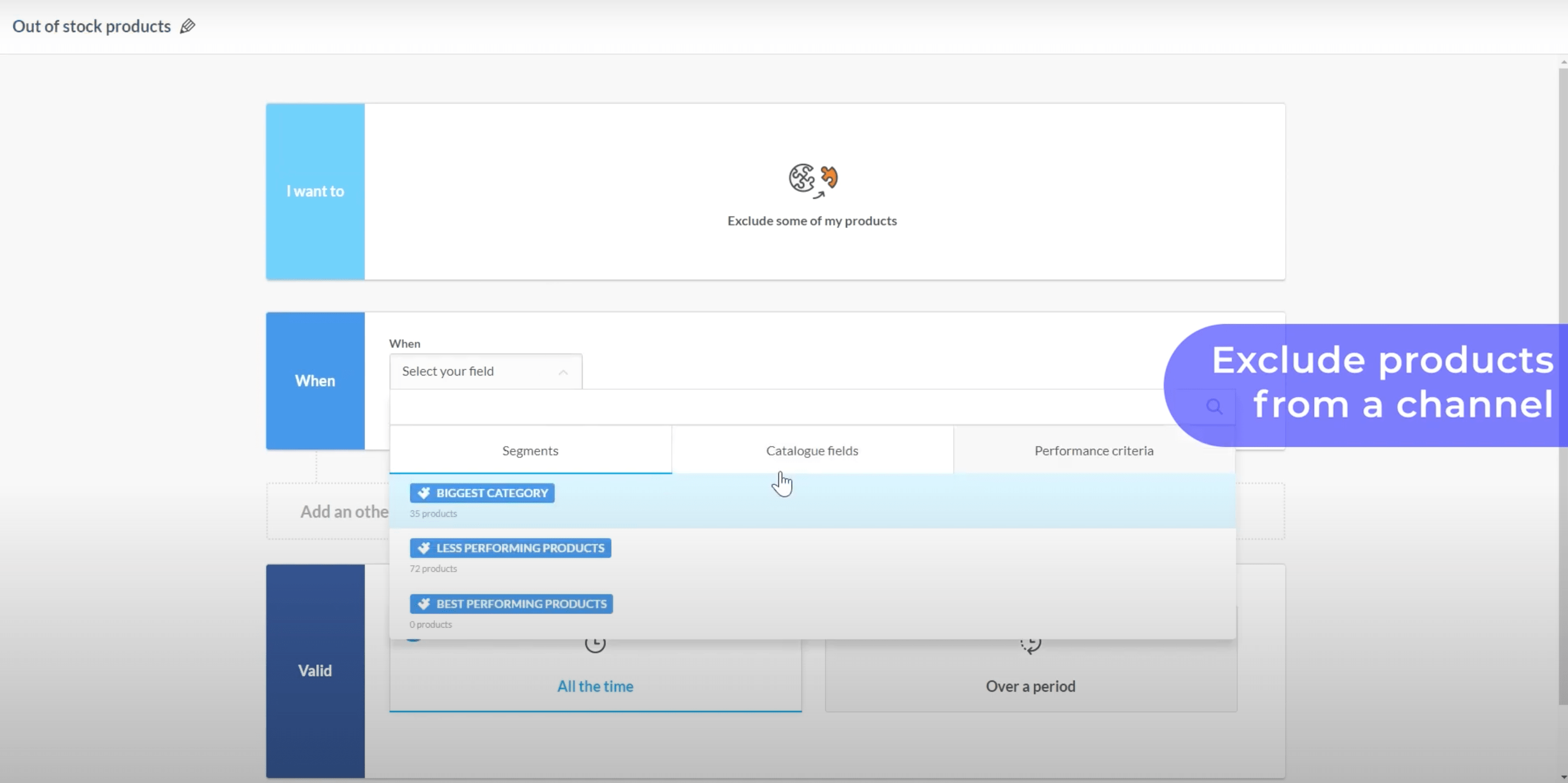
Image credit: Lengow.
Lengow offers an easy and efficient solution for excluding products from your Google Shopping feed. In order to know which products are better left out of the display, a performance review takes place first, and Netrivals, Lengow's price intelligence tool , makes it possible to additionally perform a market price and competitor analysis . Here's how you can use Lengow to exclude products and optimize your Google Shopping campaign.
Step 1: Access the exclusions feature in the Lengow platform
If your Google Shopping feed is already connected to your Lengow account, then you need to follow these steps:- Go to the "Channels" tab.
- Choose the Google Shopping catalog you want to work with.
- Click on "Settings."
- Look for the "Exclusions" option.
Step 2: Create criteria and an exclusion rule
The Exclusions feature allows you to define certain criteria for your products in relation to the selected channel. It serves two purposes:- Selecting the products from your catalogue that you do not wish to send to the channel.
- Removing specific products from the channel altogether.
- Creating exclusion rules and specifying an application period if needed.
- Examining detailed information about your created exclusion rules through the advanced view.
- Duplicating, deactivating, or deleting your exclusion rules.
- Renaming your exclusion rules.
Step 3: What to keep in mind when working with exclusions
When setting up a new channel, for example, a Google Shopping feed, it is advisable not to send all of your products at once. Why is this important?- To thoroughly review and verify your configuration settings.
- To quickly establish a positive reputation and high customer satisfaction for your flagship products.
- To prevent a negative experience for users if your product display turns out to be incorrect.
Step 4: Monitor your Google Shopping campaign performance
Now that your exclusion rule is in place, it's essential to monitor the performance of your Google Shopping campaign. Through Lengow keep an eye on the products being displayed and make adjustments as necessary to ensure that your campaign is as effective as possible.In conclusion, using Lengow to exclude products from your Google Shopping feed is a simple and effective way to optimize your campaign and ensure you're only advertising the products you want to promote. By following these steps, you can take control of your Google Shopping campaign and improve your results, increasing conversions and maximizing your ROI.
.png?width=64&height=64&name=Adrian%20(1).png)
Adrian Gmelch
Adrian Gmelch is Director of Content at Lengow, where he leads content strategy while staying firmly hands-on: reading the research, and tracking the trends that matter before they go mainstream.
.png)